
Updated: March 4, 2026
- Added v2.0 files to support the new features added to CTR2-Dial v2.05.00
- Added the ability to enter a name for each map. The name is displayed in the Home page caption.
- Added 18 additional buttons to each map and added functions to them
All CTR2 MIDI controllers (running CTR2-MIDI or CTR2-Dial firmware), must be configured to match the MIDI map of the app they are controlling. Typically, you’ll need to configure both the settings in the CTR2 firmware on your CTR device and the MIDI mapping in the 3rd-party radio control app you are connecting your CTR2 device to.
Each of Marcus’ (DL8MRE) apps come with a basic map for the CTR2 Dial Controller in the Tools menu, but you’ll still need to edit these maps to match your CTR2 controller and your preferences. Thetis and most other 3rd-party apps don’t come with pre-mapped MIDI controls, so you’ll need to map these yourself.
Each folder in the zip file includes a CTR2-Dial configuration file that you can import into CTR2-Dial using the Import option in Settings menu. 3rd-party apps also have a map import options. These files use various extension names, such as .map, .m2c, and .xml, depending on the app. Importing these maps is covered in the CTR2-Dial Firmware Manual. You can download it here. I’ve also include a spreadsheet for each app that outlines how the controls in CTR2-Dial are mapped to the functions in the 3rd-party app. You can use this file to manually edit the mappings in CTR2-Dial and your app.
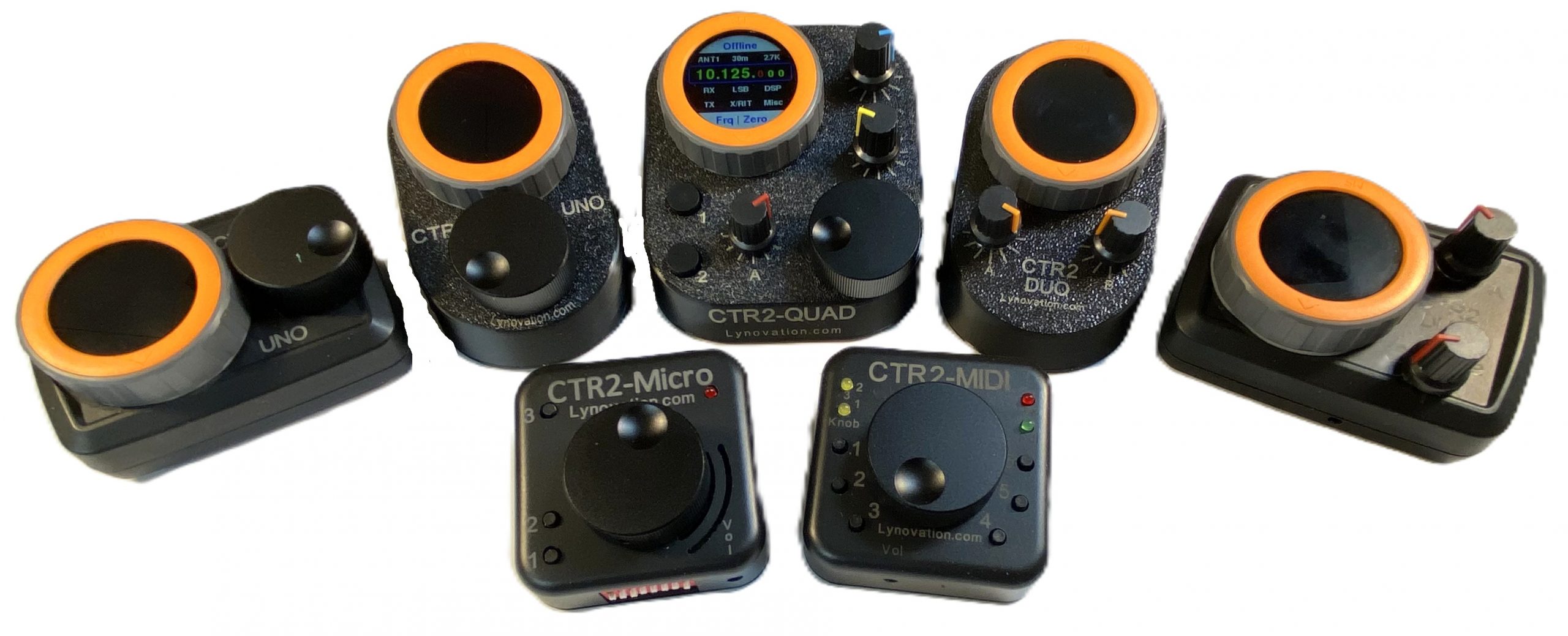
NOTE: The CTR2-Dial configuration files were exported from a CTR2-Quad. If you’re importing these files into a CTR2-Uno, CTR2-Duo, or one of the older single or dual-knob CTR2-Flex or CTR2-Dial units, you will need to set the number of knobs in the Settings menu and change the switch mapping to fit your unit.
Files for CTR2-Dial v2.05.00 and above
The files in this zip file are for used with CTR2-Dial firmware v2.05.00 and above. This firmware supports adding an app name to the Home page caption (so you know what app the configuration is for), and up to 60 buttons in each map. You can change how many buttons are displayed in the Buttons menu with the # Buttons: option in the Settings menu.
Click the Download button below to download the zip file, then unzip it to your computer.
Files for CTR2-Dial v2.04.01 and below
The files in this zip file are for use with CTR2-Dial firmware v2.04.01 and below. They do not include the app name feature and are limited to 42 buttons on each map.
These files should get you started. Feel free to make changes to your configurations to fit your operating style.
73, Lynn